Documentation
by vaultzero.dev
What is openanywhere?
openanywhere is a companion daemon that makes your OpenCode AI coding workspace accessible from any device: your phone, tablet, or another computer. It creates a secure, private tunnel so you can code with AI assistance from anywhere.
Nothing runs in the cloud. Your code and credentials stay on your machine. openanywhere just makes it reachable.
Key principles
- Local-first — Nothing leaves your hardware. Your context, credentials, and file system stay private.
- Private tunnel — Uses Tailscale's peer-to-peer WireGuard encryption. No exposed ports, no relay servers.
- Full UI — Not a stripped-down mobile view. The complete OpenCode interface, fully functional in your phone's browser.
- Zero config — One command. Scan a QR code. That's it.
openanywhere is not affiliated with or endorsed by OpenCode or Tailscale. It's an independent companion tool built by developers who want to code from anywhere.
Guide
Getting Started
From zero to coding on your phone in under two minutes. Here's everything you need to know.
Prerequisites
- macOS — macOS 12 (Monterey) or later. Linux support is experimental.
- Tailscale account — Free tier is all you need. Sign up here.
- Internet connection — Required for initial setup and for the Tailscale tunnel.
Installation
Run the one-line installer in your terminal:
$ curl -fsSL vaultzero.dev/install.sh | bash
The installer will:
- Check prerequisites — Verifies macOS, internet connectivity, and required dependencies.
- Install dependencies — Homebrew, Tailscale, Bun (for OpenCode), and OpenCode itself are installed automatically if missing.
- Authenticate Tailscale — Opens your browser so you can log into your Tailscale account.
- Install the companion daemon — Downloads or builds the openanywhere binary and adds it to your
PATH.
First run
After installation, start the daemon:
The daemon will:
- Start OpenCode — Launches the full workspace in the background.
- Generate credentials — Creates a random password and authentication token for secure access.
- Display a QR code — Scan this on your phone to open the workspace.
- Print connection info — Shows the Tailscale IP and URL to connect from other devices.
Connecting from your phone
- Install Tailscale on your phone (iOS App Store or Google Play).
- Log in with the same Tailscale account you used on your Mac.
- Scan the QR code displayed in your terminal — or open the URL manually.
- Enter the password shown in your terminal on the auth page.
The QR code contains the full URL including port number. Make sure your phone is on the same Tailscale network (the Tailscale app must show "Connected").
Architecture
How It Works
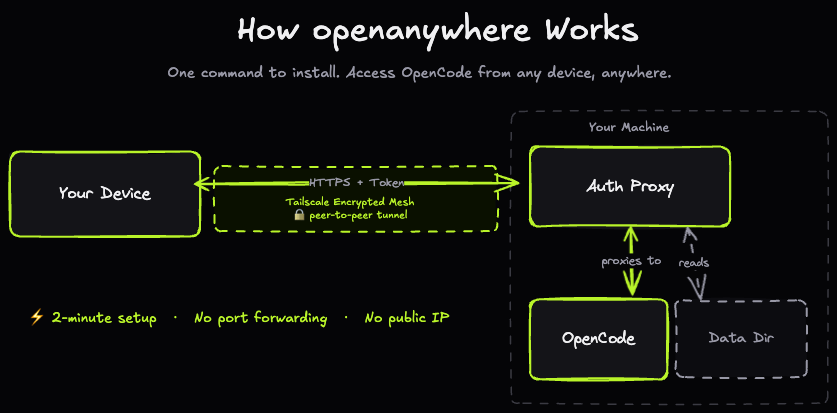
openanywhere combines a lightweight daemon, a secure auth proxy, and Tailscale's mesh network to give you remote access to your coding workspace without any cloud infrastructure.
The daemon
The companion daemon (openanywhere) is the central orchestrator. It runs on your Mac and handles:
- Starting and monitoring the OpenCode process
- Generating and persisting authentication credentials
- Running a local HTTP proxy that enforces password + token authentication
- Displaying the QR code and connection URL
The auth proxy
The daemon starts a lightweight HTTP server that sits between the Tailscale tunnel and OpenCode. Every incoming request must carry a valid session token. First-time visitors are redirected to an authentication page where they enter the password to obtain a token.
An authenticated session token is valid for 24 hours, stored as an HTTP-only cookie. This means you don't need to re-enter your password every time you open the page.
Tailscale tunnel
Tailscale creates a WireGuard-encrypted mesh network between your devices. The daemon binds its proxy to the Tailscale IP address (not localhost), making it accessible only to devices on your personal Tailscale network. No ports are exposed to the public internet.
Tailscale's free tier supports up to 100 devices and 3 users. This is more than enough for personal remote coding use.
Crash recovery
The daemon monitors the OpenCode process. If it crashes more than 5 times within 60 seconds, the daemon stops restarting it to prevent crash loops. You'll need to manually restart the daemon in that case.
Reference
Configuration
openanywhere stores all configuration and state on disk. Everything lives in a single directory.
Data directory
All files are stored in:
~/.local/share/openanywhere/
~/.local/share/openanywhere/
├── password
├── token
├── daemon.pid
├── daemon.log
└── proxy-port
Environment variables
openanywhere does not use environment variables for configuration. All settings are derived automatically:
| Setting |
Source |
Default |
| proxy-port |
Random available port |
Assigned by OS |
| hostname |
tailscale ip -4 |
Tailscale IP |
| password |
Generated on first run |
16-char random |
| token |
Generated on first run |
20-char random |
Resetting credentials
To generate a new password or token, delete the corresponding file and restart the daemon:
$ rm ~/.local/share/openanywhere/password
$ openanywhere
Reference
Security
How openanywhere protects your data at each layer.
Network security
- WireGuard encryption — All traffic between your devices is encrypted by Tailscale's WireGuard implementation. Even on untrusted networks (coffee shop WiFi, airport), your session data cannot be intercepted.
- No port forwarding — The proxy binds exclusively to your Tailscale IP. It is unreachable from the public internet.
- No relay servers — Tailscale uses direct peer-to-peer connections when possible. Your data doesn't pass through any third-party servers.
Authentication
- Password-protected — A 16-character random password is generated on first run. Every device that connects must know this password.
- Session tokens — After successful authentication, the proxy issues a time-limited session token (HTTP-only cookie) valid for 24 hours. The password is never stored in cookies or localStorage.
- CSRF protection — The auth page includes CSRF token validation on the password submission endpoint.
Data storage
- Restrictive file permissions — The password file and token file are created with
0600 permissions (owner read/write only).
- Everything stays local — Your code, credentials, and file system never leave your hardware. OpenCode runs as a local process with full access to your machine — no cloud sandboxing.
Tailscale network access: Any device on your Tailscale network can attempt to connect to the proxy port. The password protects the session, but you should only add trusted devices to your Tailscale network. Anyone on your Tailnet who knows the URL and password can access your OpenCode workspace.
Password rotation
To rotate your password, delete the password file and restart the daemon:
$ rm ~/.local/share/openanywhere/password
$ openanywhere
This will invalidate all existing sessions immediately since the token signing key is regenerated.
Reference
Launch Agent
You can configure openanywhere to start automatically when you log into your Mac. This uses macOS launchd — the native service manager.
Installing the launch agent
$ openanywhere install-boot
What the launch agent does
The plist configures launchd to:
- Start the daemon at user login
- Automatically restart if it crashes (with a 5-second delay)
- Run with your normal user permissions (not as root)
- Pass the same environment that a terminal session would have
Removing the launch agent
Stop the daemon and remove the launch agent:
$ openanywhere kill
$ launchctl unload ~/Library/LaunchAgents/com.vaultzero.openanywhere.plist
$ rm ~/Library/LaunchAgents/com.vaultzero.openanywhere.plist
Use openanywhere kill to stop a running daemon (whether started manually or by launchd). Use openanywhere status to check if a daemon is currently running.
Support
Troubleshooting
Common issues and how to resolve them.
Tailscale is not connected
Symptom: The daemon fails to start or shows No Tailscale IP found.
Fix:
$ tailscale status
$ tailscale up
Can't connect from phone
Symptom: Browser times out or shows "connection refused" when opening the URL on your phone.
Fix: Verify both devices are on the same Tailscale network:
Make sure both devices are logged into the same Tailscale account — not different accounts, not different organizations.
OpenCode fails to start
Symptom: The daemon starts but OpenCode doesn't launch, or crashes immediately.
Fix:
- Verify OpenCode is installed:
opencode --version
- Check the daemon logs:
cat ~/.local/share/openanywhere/daemon.log
- If OpenCode crashed more than 5 times in a minute, the daemon stops restarting it. Restart manually:
openanywhere
Port already in use
Symptom: EADDRINUSE error or the daemon fails to bind its proxy port.
Fix: Kill any existing daemon process first:
$ openanywhere kill
$ openanywhere
Forgot the password
Symptom: Can't remember the password to connect from a new device.
Fix: The password is stored in ~/.local/share/openanywhere/password. Display it:
$ cat ~/.local/share/openanywhere/password
Or reset it entirely (invalidates all active sessions):
$ rm ~/.local/share/openanywhere/password && openanywhere
Support
FAQ
Is this free?
Yes. openanywhere is open-source and free. The only dependency with a pricing model is Tailscale, whose free tier supports up to 100 devices and 3 users — more than enough for personal use.
Does this work on Linux?
Linux support is experimental. The installer runs on Linux and the daemon compiles for linux-x64. However, the launch agent feature depends on launchd (macOS-specific). On Linux you'll need to start the daemon manually or configure systemd yourself.
Does this work on Windows?
Not currently. The daemon is compiled for macOS (ARM64 + x64) and Linux (x64). Windows support is not planned but contributions are welcome.
What ports need to be open?
None. The auth proxy binds to your Tailscale IP — it's only reachable from devices on your Tailscale network. You never need to configure port forwarding on your router.
Can I use a custom domain?
Not directly. The daemon serves over HTTP (not HTTPS) on your Tailscale IP. If you want HTTPS, you could set up a reverse proxy with a Tailscale Funnel or use MagicDNS, but this is outside the scope of the built-in proxy.
How do session tokens work?
When you enter the correct password on the auth page, the proxy generates a signed session token and stores it as an HTTP-only cookie. This token is valid for 24 hours. During that time, you can refresh the page or reconnect without re-entering the password.
Can multiple people use the same instance?
Technically yes — anyone on your Tailscale network who knows the password can connect. However, this isn't recommended for shared use. The session token is tied to your OpenCode process, which runs in a single directory context. Multiple concurrent users would interfere with each other.